Showing posts with label Video. Show all posts

Tuesday, November 3, 2009

BlackArrow Provides VOD Ad Insertion Technology for Comcast On Demand Service

BlackArrow, a leading worldwide provider of advanced advertising solutions for New Television platforms, announced that its video-on-demand (VOD) ad insertion platform has gone live in Jacksonville, Florida with Comcast Corporation, the nation’s leading provider of entertainment, information and communication products and services. Comcast has chosen BlackArrow’s Advanced Advertising System to lead its ad insertion technology for its On Demand programming.

BlackArrow’s Advanced Advertising System gives programmers and cable operators a real-time, multiplatform campaign management and decision system for offering more timely and relevant ads in their On Demand sessions. Traditionally, advertising campaigns in video-on-demand content have had limited effectiveness due to the static nature of the ads being encoded directly into the VOD stream. In the Jacksonville market, Comcast is inserting standard 15- and 30-second promotional spots as well as newly introduced 20-second spots designed to drive tune-in for upcoming shows and specials on PBS KIDS Sprout and FEARnet in a dynamic environment.

Diana Kerekes, vice president of Video Content for Comcast, said, “The ability to update VOD advertising will help us offer feature parity with traditional linear and Internet-based advertising systems. We’re pleased to be working with a technology leader like BlackArrow as we look for ways to offer our programming partners expanded opportunities to monetize their content offerings.”

“Comcast has led the industry in creating new opportunities to reach consumers in the on-demand marketplace, and we’re excited to be working with them,” said Dean Denhart, chief executive officer, BlackArrow. “By combining BlackArrow’s expertise in advanced VOD advertising platforms with Comcast’s VOD leadership, we hope to expand the business model significantly for on-demand advertising.”

Saturday, October 31, 2009

Dreamweaver Great for Authoring Streaming Video

Dreamweaver is great for authoring streaming video. So, if you need to start putting video content on-line then it's a tool you should have in your arsenal. The application is featured in our 2-Day Video Streaming and Compression Trainings. One of the benefits of Dreamweaver is that it doesn't insert a lot of unnecessary code. Also, if you're authoring Flash content the task becomes a breeze. The tool automatically inserts the proper code whenever you insert a .SWF or .FLV file. You can use Dreamweaver to also author Windows Media, Real Media, QuickTime, and MPEG-4 content. Attend one of our Video Streaming and Compression Trainings to find out how to use the Dreamweaver and how to author your streaming video.

Friday, October 30, 2009

Freeman Compression Inc. Looking for Trainers in Rome, Italy

Freeman Compression Inc. is looking for Trainers in Rome, Italy that can teach video streaming and compression training classes.

Trainers with expertise in the following are needed:

Go Stream Surf
Sorenson Squeeze
Episode Encoder Pro
Wirecast
Video and Audio Podcasting
Video Streaming
Video Compression
Sawmill Professsional
Authoring Streaming Videos with Dreamweaver
Streaming Servers

We can be reached at 407.477.5837 or by email at info@freemancompression.com.

Tuesday, October 27, 2009

Encoding H.264 Downloadable Streaming Video with Episode Encoder Pro

Encoding H.264 downloadable streaming video with Episode Encoder Pro is simple to do. For this tutorial we’ll take a DV.mov source file that is 720 x 480 and 29.97 frames per second captured from an analog source. The source file has the DV/DVCPro Codec for video with PCM for audio.
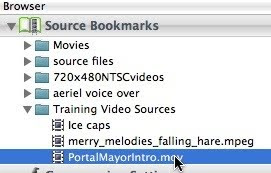


To get started with encoding this file for downloadable streaming for high broadband users in Episode Encoder Pro, we first need to select our source file.


Next, drag it to the Batch area where Drag Source is displayed


Now your source file can been seen in the batch. You can also drag the video file directly to the Batch from a folder or the desktop. Let me talk a little about our source before we move forward. If you select the source and click the Enter button on your keyboard a preview of the video appears.


As my preview appears I want to point out that this source has black banding around the edges. As we encode our video we want to make sure we crop this black out of the video. It will make our output file look so much better. Now we’ll move forward to create a compression preset for our encoding. Keep in mind that these settings will be a good starting point as every source file is different and the encoder will respond differently to each source file you encode.


Open up the Templates and twirl down to the All File Formats Templates.


Once the All File Formats Templates are open navigate to the H.264 Download templates and select the H264_480x360 preset. With the preset selected Control-click and choose Duplicate from the Contextual Menu to make a copy.


You now have a copy of the preset you duplicated. Click where the H264_480x360 copy text appears to rename your preset.


Let’s call your preset H264_600k_DL and select Enter. Notice that we don’t have any spaces the preset name. This is because the preset will be used in the file naming and it’s better to take out all spaces in the encoding process. When you author video content for the web you don’t want to have spaces in your video name.

Once you rename your compression template Double-click the preset to open the setting for customizing.


When your setting is open the Output tab will appear. Since we are encoding a downloadable streaming H.264 file notice that your file extension will be .mp4 and the H.264 codec is used for the video and AAC is used for the audio. You can see that the Hint Prepare for Streaming check box is not selected. Hinting isn’t necessary to use because we’re not targeting this video file for a streaming server.


Next move on to the Video Tab. Twirl down where H.264 is displayed to adjust the settings for the H.264 codec.


For the datarate type in 600 kbps and you can continue to use VBR using VBV. For the buffer, since this is a downloadable video, you can increase your buffer to 10 seconds. This will allow the codec to vary the bit rate more. For the Keyframe distance you can use a value of 90 frames which will provide a keyframe at least every 6 seconds.


Click on the Profile and Quality tab. Notice that 2-pass encoding is selected. Adjust the quality slider to the highest quality of 100 and twirl up the codec setting.


Go to the Frame Rate Filter and twirl down. For the filter mode choose Fixed framerate.


For the Framerate preset you can use Automatic and select 15 fps. Now twirl up the Frame Rate filter.


Twirl down the Deinterlace filter and choose Automatic Detection for the Field Order. This fact that this setting is available is great because with compression it’s always good to know you field order. Choosing the Automatic Detection value takes the guess work out and the codec will determine the field order for you. Go ahead and twirl up the Deinterlace filter.


Now twirl down the Resize filter.


For the output size you can leave it at 480 x 360. You can choose Cut for Maintain proportion with.


For the cropping values we’ll multiply the 4:3 aspect ratio by 8 and crop 32 x 24 pixels. So crop 12 pixels off the top, 12 pixels off the bottom, 16 pixels off the left and 16 pixels off the right.


Since we’re dealing with video from an analog source we need to apply a Noise Reduction filter. Navigate to the Noise Reduction filter and click the check box to make it active.


Now, twirl down the Noise Reduction filter to adjust the values. Check Median and Only Filter Chroma to apply the filter only on the Chroma channel. Leave the other values at the default. Twirl up the Noise Reduction filter.


Let’s move to the Audio tab.


Click on the Bit Rate Pop-up Menu and choose 32 kbps.


You can leave Stereo selected for Channels and 44.1 kHz selected for the sample rate.


Now that were are finished making our adjustments click the Save Setting button to the top right on the Episode Encoder Pro interface.


Click the Close Setting button.


Next, select the H264_600k_DL setting that you created


and drag it onto your DV.mov video source.


You can see that your compression preset appears right below the video source. Before we start encoding let’s look at something. Select the H264_600kDL preset and click the Enter key.


A preview of your video output appears with the cropping values applied under the Resize filter. Our black edges no longer appear. Time to encode your video file.


At the bottom right of the Episode Encoder Pro interface click the Start Encoding button.


You can watch your progress under status. This will show you how much time you have left.


Once your video has finished encoding your status will switch to Done. You have now encoded an H.264 downloadable streaming video using Episode Encoder Pro.

Monday, October 26, 2009

New Streambox Live IP-Based Contribution Service Receives STAR Awar

Streambox, Inc. announced that its newly launched Streambox Live IP-based video contribution service was honored with a 2009 STAR (Superior Technology Award Recipient) Award by the editorial staff of TV Technology Europe, at the recent IBC2009 show in Amsterdam. In addition, Streambox Live “caught the eye” of IBC staffers, who featured the product in a special conference session entitled “What Caught My Eye.”

Based on Streambox’s award-winning ACT-L3 technology, the Streambox Live service enables remote broadcasters and citizen reporters to upload compressed live video streams to broadcast studios through Internet-based Streambox Live Data Centers. The Streambox Live service interoperates seamlessly with Streambox's industry-leading platform of SD and HD broadcast-quality video encoders and decoders, as well as its complete line of broadcast and distribution servers.

The STAR Award (Superior Technology Award Recipient) is designed to celebrate and showcase the preeminent technological innovations available to the broadcast industry. TV Technology Europe's editor reviewed a variety of products, examined the technical applications and their overall contribution to the industry, and then chose Streambox Live as one of 25 winners. For the “What Caught My Eye” designation, the Streambox Live demonstration was captured by a roving IBC film crew and the footage was featured the next day in a presentation shown to conference delegates.

“We believe Streambox Live has tremendous potential to revolutionize news programming by enabling broadcasters to add citizen reporters and ad hoc contributors to the newsgathering team in an easy-to-use and cost-effective manner,” said Bob Hildeman, chairman and CEO of Streambox. “It’s truly an honor to be among only 25 solutions at IBC to receive a STAR Award, and it’s a real validation of Streambox Live's potential in the industry. And the fact that the ‘What Caught My Eye’ team picked up right away on the solution’s value and benefits really shows its instant appeal to broadcasters.”

Friday, October 23, 2009

RipCode and CSS Strike China Distribution Partnership for Transactional Transcoding

RipCode, Inc., the leader in transactional video transcoding, announced a distribution alliance with Century Sage Scientific (CSS), a premier reseller and systems integrator of broadcast, Internet, and streaming technologies to the Chinese media and telecommunications markets.

As a certified systems integrator to some of the world’s largest broadcast and telecom equipment manufacturers and operators, CSS has a proven track record of delivering fully integrated, turnkey systems for IPTV, Web, and communications applications. Recent CSS projects include large-scale deployments for CCTV, Shenzen Media Group, and the upcoming master-control build-out for the 11th National Games in the People’s Republic of China. RipCode’s transactional transcoding technology expands the CSS portfolio for broadcast, broadband and 3G mobile services, while also providing cost-effective options for Internet delivery of educational and other entertainment content.

China’s broadcast and mobile communications market has unique requirements and regulations relative to other geographical regions. The number of mobile users is expected to surpass 1.2 billion within four years, leading to a growing appetite for quality content over broadband and wireless connections. “Given the sheer number and model variance of devices, optimizing transmission and encoding recipes for local browsers and mobile handsets is both a significant undertaking and opportunity for a value-added service,” says Alex So, CSS vice president of marketing. “In order to best serve the local market, CSS and RipCode have already begun joint testing and development to ensure smooth adoption of RipCode transcoding technology in China. RipCode’s solution portfolio provides leading transcoding technology – but goes beyond what we’ve seen from traditional vendors by also addressing on-demand ad insertion, client detection, and policy-based bandwidth optimization – key factors in our selection of RipCode for the China market.”

“We are seeing increasing interest and demand in China – not only for three-screen content delivery – but also in the innovation RipCode delivers through its end-to-end transactional transcoding solution approach,” says Greg Lowitz, RipCode executive vice president of sales. “CSS represents the top brands in the broadcast and communications business, and we’re thrilled to be part of their solution portfolio for the Chinese media and telecommunication markets.”

Tuesday, October 13, 2009

Media Console Makes Life Simple for Authoring Streaming Content

For all those individuals in media organizations, public affairs and media departments that need to start delivering video to the web, there is an amazing tool to help you out. Internap's Media Console is amazing and makes life simple for authoring streaming content. The Media Console tool takes the hard work out of authoring your streaming videos for your website. The only item that you have to focus on is encoding your videos. Once you encode your content all you have to do is upload your videos to the Internap CDN. The Media Console comes as part of the package for using the Internap Content Delivery Network (CDN).

There is a nice user interface that allows you to upload your videos. You can also FTP video to the content delivery network as well. The Media Console includes pre-made Flash Media player templates, generated embed and object tags, support for live and on-demand streaming, live streaming statistics and many other features. If you are serious about moving forward with streaming content on-line, you owe it to yourself to give Internap's CDN and their Media Console tool a try.

Saturday, October 10, 2009

Highwinds and Octoshape Tee Up High Quality Streams for PGA TOUR

Highwinds Network Group, Inc., a multiplatform IP services and content distribution provider, and Octoshape, a provider of streaming solutions for high quality and large-scale events, announced that their technologies have been used for online streaming of the four PGATOUR Playoffs for the FedExCup events on PGATOUR.COM.

PGATOUR.COM’s signature LIVE@ franchise offered live streaming from marquee holes at all four of the Playoff tournaments which included The Barclays (Aug. 27-30), Deutsche Bank Championship (Sept. 4-7), BMW Championship (Sept. 10-13) and THE TOUR Championship presented by Coca-Cola (Sept. 24-27). Streaming of the month-long PGA TOUR Playoffs utilized the Highwinds-Octoshape solution and helped deliver quality streams of this high-profile event to global online audiences.

As the demand for high-quality video and an enhanced feature set grows in the online media sector, Highwinds and Octoshape continue to work together to deliver robust, resilient solutions through the Octoshape live streaming solution running seamlessly on the Highwinds content delivery network (CDN). The PGATOUR.COM video player, which is fully customizable and enables golf fans to enjoy enhanced features, including digital video recording, leaderboard overlays, scorecard overlays, social network interaction and more, integrated the Octoshape high-quality video streaming solution for the four FedExCup events. For the same events, all live PGATOUR.COM coverage was streamed over the Highwinds CDN.

“Highwinds is quickly becoming recognized as the go-to CDN for the streaming of high-quality, large-scale news, entertainment and sporting events,” said Steve Miller, president and CEO of Highwinds. “Our partnership with Octoshape, which has included the streaming of such live events as the Presidential Inauguration, the Michael Jackson Memorial Service and now the 2009 PGA TOUR Playoffs, continues to grow to support the future of online video. Octoshape’s live streaming solution is a perfect complement to our robust CDN infrastructure and live delivery services.”

“The streaming infrastructure offered by Octoshape is designed to deliver high quality video, DVR, and instant on playback to global audiences,” said Scott Brown, CEO of Octoshape U.S. “Events of this quality and scale only come from the magic combination of ‘Class A’ production and technology integration like that of PGATOUR.COM, our proven, leading-edge technology and Highwinds’ high-performance CDN.”

Friday, October 9, 2009

Video Podcasts Are One of the Quickest Ways to Get Content On-line

Video Podcasts are one of the quickest ways to get content on-line. If you need to start putting videos on-line you should consider this approach. Today is a new day for video editors. Many video editors and professionals are now being tasked with getting streaming content on-line along with the continuation of other video production duties. In order to simplify your workflow you should consider creating a Video Podcast. You can go this route if downloadable streaming videos work for your delivery and if you can sell your organization on the benefit of having videos available for view in iTunes, on Video iPods and on iPhones.

Once your Video Podcast is set-up the process for updating new video content is easy.

If your are fortunate to have a version of Sorenson Squeeze 5 Pro around which supports compression presets for Video iPods, updating on-line content becomes a very quick and simple process. Since you can use Squeeze's automatic FTP feature there's short list of what you'll need to do to get your content on-line:

Here's a short tutorial of the process for adding videos to your Video Podcast.

Step 1. Import your video into Sorenson Squeeze 5 Pro
Step 2. Apply one of the Video iPod presets
Step 3. Apply the appropriate filters for encoding


Step 4. Apply the Copy to FTP filter to your video source


Step 5. Double click the Copy to FTP filter to adjust the settings


Step 6. - Now that the Copy to FTP dialog is open you can adjust the settings. Using this feature will automatically transfer a copy of your output file to your web server after encoding. To use this feature you have to have an FTP account set-up for uploading videos to your web server. Go ahead and fill out the required information which includes: User Name, Password, Host and Path to your videos. Once your information has been typed in click the Test button and you should see a message that displays "Test was successful"


Step 7. - Once encoding is complete your videos will be automatically uploaded to your web server. Open up Blogger or the tool you're using as the blog to your Video Podcast. Add the URL for your video. Look at the image above to see how to add your URL information. Once you save and publish your blog page your video will be available via your Video Podcast. Sometimes it might take a few minutes to appear.

It's that simple. Now you see why I say Video Podcasts are one of the quickest ways to get video content on-line.

Tuesday, September 29, 2009

Downloadable Streaming Basics

Another form of streaming is called downloadable streaming which is different than that of real-time streaming because the video files are placed on a regular web server. With downloadable streaming you can deliver the highest quality file because you can use encoding methods such as 2-pass VBR to vary the bit rate so that higher quality can be achieved over parts of the video that need it more. Since downloadable streaming videos are a file-based download where they don’t have to go through the user’s bandwidth pipe, the bit rate at various parts of the video can peak high. This is different than that of a CBR or a Constant Bit Rate encode. Downloadable streaming videos are great for short form content. With this type of streaming there is also an option to do a quality based encode where the compressionist can determine the quality that they want to achieve on a video file. It's important to note that when viewing a downloadable streaming video a copy does get placed on the viewer's computer but is one of the easiest ways to deliver streaming videos on the internet.

Tuesday, September 15, 2009

RipCode On-Demand Transcoding Brings Video to AccessU2's Property By Phone

RipCode, Inc., the leader in transactional video transcoding announced it has partnered with AccessU2 to deliver on-demand property videos to virtually any mobile device – enabling ‘anytime, anywhere, any device’ viewing of agent profile and virtual tour property videos.

AccessU2 Mobile Solutions, LLC, a pioneer in mobile marketing for real estate, and its patent pending product, Property By Phone, are revolutionizing property information delivery by providing the same experience to a buyer's cell phone that virtual tours have delivered to websites. The Property By Phone application lets clients dial a toll-free number listed on the property sign or in print advertising, entering a displayed property code. After making a language selection and confirming the cell phone number, an SMS text message description of the property, up to 10 photos, and a streaming video link are presented nearly instantly. Agents receive a text message of the cell phone capture at the same time. If the client selects the video link, RipCode’s TransAct solution automatically discovers the mobile device type, retrieves the source video file, transcodes the file for the best video playback experience for that particular mobile device, and streams the content within seconds of request – all through its innovate and unique On Demand Transcoding technology. Clients can even set an appointment instantly to view the listing by connecting with a live operator 24/7, who can book an appointment, and text the confirmation and full contact info back to the consumer and agent.

“Adding video viewing to Property By Phone improves the buyer’s purchase experience and enables agents to build those all important relationships faster, especially when they can deliver an agent profile video instantly. It is simply not enough to deliver a text message and photos any longer,” said AccessU2’s Founder and CEO, Kenneth O’Hanlon. “The ability to deliver video instantly enables endless marketing opportunities for brokers, agents, and real estate suppliers, the likes of which the industry has never been seen before. RipCode’s solution lets us deliver these videos to virtually any mobile device prospective buyers may carry – without us having to pre-format our entire video library for each device when only a small subset may actually be required for a given site. Multiply that activity times thousands of properties and buyers, and you can see why this approach is advantageous.”

“We are excited to see one of our flagship innovations – on demand transcoding – penetrate the world of enterprise and consumer mobile video delivery,” said Neal Hartsell, Vice President of Marketing and Product Management for RipCode. “What AccessU2 is doing for real estate buying and selling is creative, advanced, and indicative of the growing expansion of mobile video beyond entertainment and into business and consumer productivity, a trend that is set to explode worldwide in the coming years.”

Thursday, September 10, 2009

Training for Video Streaming and Compression in Europe

On-site training for Video Streaming and Compression is available in Europe. In addition to making our training classes available In-class and On-line, Freeman Compression Inc. will be available to come and train your organization in Europe. This can provide a tremendous cost savings because organizations won't have to pay for their employees' travel to the U.S. Our full list of training classes will be offered in Europe.

Organizations will be able to choose from any of the following classes or have them grouped together:

2-Day Video Streaming and Compression Training
1-Day Sorenson Squeeze Training
1-Day Episode Pro Training
1-Day Wirecast Live Streaming Training
1-Day Wowza Media Server Pro Training (PC)
1-Day Wowza Media Server Pro Training (Mac)
1-Day Sawmill Professional Training

If you'd like to have Freeman Compression Inc. train your organization in Europe or in another country give us a call by phone at 407-477-5837 or E-mail us at info@freemancompression.com

Tuesday, September 8, 2009

Encoding for a Video Podcast

When encoding for a Video Podcast keep in mind you're encoding for a Web Server. Why? Video Podcast videos and audio files are technical downloadable streaming files. The downloading process mostly happens behind the scenes while you're performing other tasks. Video Podcast files are great in that you can provide them at very high quality since you're targeting iTunes, Video iPods and iPhones.


Now, there's no reason why you shouldn't be using 2-Pass VBR or Multi-pass encoding when compressing your Video Podcast files. Many times because of time you can opt for 2-Pass VBR encoding since Multi-pass generally uses about 5-6 passes.

Thursday, September 3, 2009

Wirecast Live Streaming Great for Churches

Wirecast Live Streaming is a great option for Churches. With limited budgets Churches can get the benefit of having a full video production studio on their desktop. Usually when you do a full scale production a video switcher is needed but Wirecast actually becomes that switcher. This gives you a very inexpensive option to switch from videos for playback, camera sources, and presentations. Wirecast includes a Preview and Program window so you can see which sources are in Preview and which ones are in Program (Live).

Now with using a tool such as Wirecast for Live Streaming you can think about your production for your Live Streaming event in a more professional way. You need to plan on having a Director to switch your event and you should have a Producer that maps out all of the activity happening during your event. Next, the Producer should create a script that has all the speakers that will participate in the Live Streaming event. He/She should also document all the cameras and sources to use during the production. Lastly, the easy part is to follow the script and use Wirecast to do your switching.

Video Streaming and Compression Training Schedule

1-Day Wirecast Training (PC)

March 1, 2010
April 1, 2010

1-Day Sawmill Professional Training (Mac)

March 6, 2010
April 2, 2010

1-Day Sawmill Professional Training (PC)

February 24, 2010
March 24, 2010
April 21, 2010

1-Day Sorenson Squeeze 6 Training

March 10, 2010
April 20, 2010

2-Day Video Streaming and Compression Training (PC)

February 25 -26, 2010
March 25 -26, 2010
April 22-23, 2010

1-Day Wowza Media Server 2 Training (PC)

February 27, 2010
March 27, 2010
April 24, 2010

1-Day Wowza Media Server 2 Training (Mac)

February 3, 2010
March 2, 2010
April 28, 2010

1-Day Episode Encoder Pro Training

February 9, 2010
March 31, 2010
April 30, 2010

Call Freeman Compression Inc. at 407.477.5837 or contact us by E-mail at info@freemancompression.com to register for a class.

Upcoming On-line Training


1-Day Wirecast Training (PC)

March 29, 2010
April 16, 2010

1-Day Wirecast Training (Mac)

March 23, 2010
April 17, 2010

1-Day Sawmill Professional Training (Mac)

March 26, 2010
April 19, 2010

1-Day Sawmill Professional Training (PC)

March 3, 2010
April 17, 2010

1-Day Sorenson Squeeze 6 Training (PC)

March 13, 2010
April 25, 2010

1-Day Sorenson Squeeze 6 Training (Mac)

March 30, 2010
April 29, 2010

2-Day Video Streaming and Compression Training (PC)

March 11-12, 2010
April 15-16, 2010

2-Day Video Streaming and Compression Training (Mac)

March 4-5, 2010
April 5-6, 2010

1-Day Wowza Media Server 2 Training (PC)

March 22, 2010
April 7, 2010

1-Day Wowza Media Server 2 Training (Mac)

March 30, 2010
April 14, 2010

1-Day Episode Pro Training (Mac)

March 16, 2010
April 27, 2010

Call Freeman Compression Inc. at 407.477.5837 or contact us by E-mail at info@freemancompression.com to register for a class.

Tuesday, August 18, 2009


HSN (hsn.com), the leading interactive lifestyle network and retail destination, announces the launch of a dynamic new application (“app”) for the Apple® iPhone™ and iPod® touch®. The 45 million subscribers to the devices who download the HSN Shop App now have the ability to view HSN programming 24 hours a day, 7 days a week, throughout the US. The launch creates the e-commerce industry’s first live-video “3-screen experience,” enabling consumers to browse and shop the network’s 35,000-plus array of products from home or on the go.

All the engaging highlights that HSN and hsn.com users enjoy are packed into the clever app, available for download at both the iTunes App Store and hsn.com. Live, ‘round-the-clock HSN TV (along with a library of original videos), the HSN Today’s Special, Items Recently Aired, and the many hosts, featured designers and their tens of thousands of products are among the familiar and favorite hallmarks of HSN programming that will be available through the mobile experience. Additionally, the HSN Shop App brings with it a set of new features, including the interactive shake2shop, which, with a simple shake of the device, generates random product recommendations as well as deals and promotions targeted at HSN’s mobile customers.

“Our customer is fashionable and discerning, and thrives on information, ideas and discovery,” says HSNi CEO, Mindy Grossman. “HSN strives to be the true multichannel experience, and this new iPhone app now allows our customer to take HSN with her, anytime, anywhere, and be that reliable, ‘on-the-go’ resource for lifestyle information she craves.”

The HSN Shop App also makes for a seamless transactional experience, allowing the user to call HSN directly or use the device’s browser to purchase an item. Items can also be saved for later purchase, or emailed to a friend.

While the HSN Shop App is supremely navigable and user-friendly,hsn.com will soon feature a tutorial that walks all new users through the app’s various fundamentals and features. To insure the optimal experience, the app will also evolve based on customer feedback.

“HSN truly leads the way in total convergence of its media technologies,” says Brian Bradley, EVP/ GM, HSN Online & Advanced Services. “The loyalty of our customer base has been predicated in large part on a unique ability to engage them in all aspects of their lives, and the addition of a mobile ‘third screen’ opens up an entirely new dimension for interaction.”

Inlet Technologies’ SpinnakerTM live streaming appliance provides the encoding backbone for the HSN Shop App’s streaming video. Spinnaker fully supports Apple’s HTTP adaptive streaming, which reduces buffering and other interruptions to create an exceptional viewing experience and diminish latency, helping HSN customers move through the purchasing process quickly. Inlet, the leader in advanced encoding solutions for new media, has been a HSN web streaming partner since 2008.

At launch, the HSN Shop App will be marketed via on-air promos run throughout HSN TV programming. Other promotional efforts will follow.

The HSN Shop App arrives amidst HSN’s ongoing multichannel convergence effort, which includes expansion of its Shop-by-Remote service and complete transition to high-definition (HD) format.

Friday, August 14, 2009

Making Video Adjustments Encoding with MPEG Streamclip


Making video adjustments encoding with MPEG Streamclip is a huge benefit if you need to adjust brightness, contrast, saturation or volume. The is an invaluable benefit if you have audio that was recorded low during the video recording process and you need to increase the volume. Imagine being able to fix the audio on 50 to 100 video clips while converting to QuickTime, Windows Media or iPod video. Well, that's what MPEG Streamclip can do.

Using the Batch List you can include all of your desired videos to convert and apply your desired video adustments to all output video clips.