 Dreamweaver is great for authoring streaming video. So, if you need to start putting video content on-line then it's a tool you should have in your arsenal. The application is featured in our 2-Day Video Streaming and Compression Trainings. One of the benefits of Dreamweaver is that it doesn't insert a lot of unnecessary code. Also, if you're authoring Flash content the task becomes a breeze. The tool automatically inserts the proper code whenever you insert a .SWF or .FLV file. You can use Dreamweaver to also author Windows Media, Real Media, QuickTime, and MPEG-4 content. Attend one of our Video Streaming and Compression Trainings to find out how to use the Dreamweaver and how to author your streaming video.
Showing posts with label on-line. Show all posts
Showing posts with label on-line. Show all posts
Saturday, October 31, 2009
Dreamweaver Great for Authoring Streaming Video
Dreamweaver is great for authoring streaming video. So, if you need to start putting video content on-line then it's a tool you should have in your arsenal. The application is featured in our 2-Day Video Streaming and Compression Trainings. One of the benefits of Dreamweaver is that it doesn't insert a lot of unnecessary code. Also, if you're authoring Flash content the task becomes a breeze. The tool automatically inserts the proper code whenever you insert a .SWF or .FLV file. You can use Dreamweaver to also author Windows Media, Real Media, QuickTime, and MPEG-4 content. Attend one of our Video Streaming and Compression Trainings to find out how to use the Dreamweaver and how to author your streaming video.

Friday, October 9, 2009
Video Podcasts Are One of the Quickest Ways to Get Content On-line
 Video Podcasts are one of the quickest ways to get content on-line. If you need to start putting videos on-line you should consider this approach. Today is a new day for video editors. Many video editors and professionals are now being tasked with getting streaming content on-line along with the continuation of other video production duties. In order to simplify your workflow you should consider creating a Video Podcast. You can go this route if downloadable streaming videos work for your delivery and if you can sell your organization on the benefit of having videos available for view in iTunes, on Video iPods and on iPhones.
Once your Video Podcast is set-up the process for updating new video content is easy.
If your are fortunate to have a version of Sorenson Squeeze 5 Pro around which supports compression presets for Video iPods, updating on-line content becomes a very quick and simple process. Since you can use Squeeze's automatic FTP feature there's short list of what you'll need to do to get your content on-line:
Here's a short tutorial of the process for adding videos to your Video Podcast.
Step 1. Import your video into Sorenson Squeeze 5 Pro
Step 2. Apply one of the Video iPod presets
Step 3. Apply the appropriate filters for encoding

Step 4. Apply the Copy to FTP filter to your video source

Step 5. Double click the Copy to FTP filter to adjust the settings

Step 6. - Now that the Copy to FTP dialog is open you can adjust the settings. Using this feature will automatically transfer a copy of your output file to your web server after encoding. To use this feature you have to have an FTP account set-up for uploading videos to your web server. Go ahead and fill out the required information which includes: User Name, Password, Host and Path to your videos. Once your information has been typed in click the Test button and you should see a message that displays "Test was successful"

Step 7. - Once encoding is complete your videos will be automatically uploaded to your web server. Open up Blogger or the tool you're using as the blog to your Video Podcast. Add the URL for your video. Look at the image above to see how to add your URL information. Once you save and publish your blog page your video will be available via your Video Podcast. Sometimes it might take a few minutes to appear.
It's that simple. Now you see why I say Video Podcasts are one of the quickest ways to get video content on-line.
Friday, September 11, 2009
Working with Videos in Sorenson 360
Today we'll be discussing working with videos in Sorenson 360. Now if you thought Sorenson Squeeze was an amazing compression tool, wait until you get a load of his big brother for video delivery Sorenson 360. When looking at the available features of this tool since its May release it boasts a lot of excitement right out of the box. Many times individuals and organizations that want to host videos on-line have to set-up a server for the video delivery but Sorenson 360 takes that job off your plate because it is a Video Delivery Network.
Let's now look at the Video section in 360.

After logging into Sorenson 360 you can click on the Video tab to access your videos.
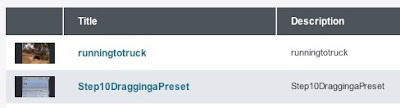
On the main page of the Video section you can get a quick snapshot of the Video Title, Description, Format, Upload Date, and Number of Views. You can also sort through the videos that are Live, Retired and in the Trash. Sorting by Upload Date, Title and Number of Views is another option.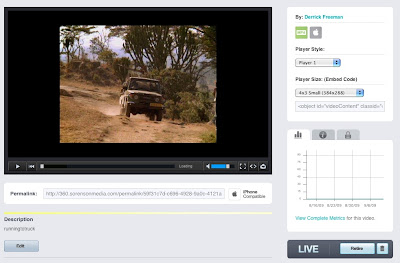
Let's now look at the Video section in 360.

After logging into Sorenson 360 you can click on the Video tab to access your videos.

On the main page of the Video section you can get a quick snapshot of the Video Title, Description, Format, Upload Date, and Number of Views. You can also sort through the videos that are Live, Retired and in the Trash. Sorting by Upload Date, Title and Number of Views is another option.
Now, let's look a little bit further into the features in the Video section of Sorenson 360.

If you click on one of your videos you'll get access to many other items. You can choose a Player Style, Player Size, copy Embed Code and copy a Permalink. In this area you also have the option to Edit Title, Edit Description and Password Protect videos. If you want to make a video Live, Retire it or Trash it this is where you'll do it. Lastly, this area will give you quick access to video metrics and settings used during encoding. Wow, and that's only the Video section of Sorenson 360.
To get more hands-on instruction on using Sorenson 360 attend one of our 2-Day Video Streaming and Compression classes. It'll be featured in Day 2 of the Authoring track.
Thursday, September 10, 2009
Training for Video Streaming and Compression in Europe
 On-site training for Video Streaming and Compression is available in Europe. In addition to making our training classes available In-class and On-line, Freeman Compression Inc. will be available to come and train your organization in Europe. This can provide a tremendous cost savings because organizations won't have to pay for their employees' travel to the U.S. Our full list of training classes will be offered in Europe.
 Organizations will be able to choose from any of the following classes or have them grouped together:
2-Day Video Streaming and Compression Training
1-Day Sorenson Squeeze Training
1-Day Episode Pro Training
1-Day Wirecast Live Streaming Training
1-Day Wowza Media Server Pro Training (PC)
1-Day Wowza Media Server Pro Training (Mac)
1-Day Sawmill Professional Training
If you'd like to have Freeman Compression Inc. train your organization in Europe or in another country give us a call by phone at 407-477-5837 or E-mail us at info@freemancompression.com
Monday, August 31, 2009
Retiring Streaming Videos in Sorenson 360
One of the features I love in Sorenson 360, Sorenson Media's tool for content delivery, is the ability to easily retire streaming videos when you no longer want your video content on-line. This is great if you have Sorenson 360 videos posted on your blog or on your website and you no longer want the content available for viewers.
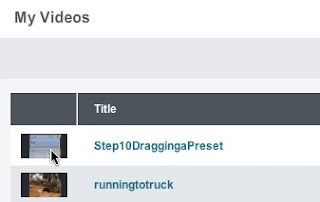

To retire a video first select the video from within your Live videos.
On the bottom of the next window that displays, click the Retire button. Now that your videos are retired they will no longer be available wherever you posted your embed code.
Sunday, July 12, 2009
Episode Pro Training
Class Summary: Learn how to compress videos in this 1-Day Episode Pro training to formats like QuickTime, Real Media, Flash, Windows Media and H.264. As one of the best applications for craft encoding, Episode Pro 5 gives users the power to make a wide number of adjustments and changes to compression settings, filters and many other settings. With Episode Pro users have total control over the adjustments that they would like to make for their encoding jobs. This one day class gives users hands-on tips and tricks for utilizing this video compression tool. Students will learn how to encode to all the popular video formats for Web Server and Streaming Server delivery. In addition attendees will learn how to encode to 25 Mbps and higher MPEG-2 files, how to encode Multiple Bit Rate Real Media video files, and how to add and adjust filters. Our Episode Pro Training class is available On-site or On-line. Contact us for more details.
Episode Pro training class schedule
In this training students will also learn:
- How to encode to QuickTime, RealMedia, Flash, Windows Media and H.264 formats
- How to encode Real-time and Downloadable streaming videos
- How to set-up Filters for Encoding Projects
- The process for encoding multiple videos using Watch Folders
- How to choose the proper codec for your output format
- How to compress videos for Video iPods, iPhones and Video Podcasts
- How to encode Multi Bit Rate Windows Media Files
- How to add watermarks when encoding
- The process for including bumpers and trailers on video output files
Featured Software for Class

Episode Pro 5 with Flash 8 encoder
Class Overview
1. Interface Overview
Your instructor will show you the different features of the interface to get you familiar with the application quickly. This part of the class will cover Bookmarks, Compression Settings, the Job Batch, the Settings Editor, and the various Tabs within the Compression Settings. This part of the training will also cover the Source and Preview windows along with how to choose a custom output location for your encodes.
2. Encoding Downloadable Streaming Videos
You will encode videos for downloadable streaming in formats such as: QuickTime, H.264, Windows Media, Real Media and Flash. This part of the class will teach you how to get the quality you desire for your downloading streaming videos. Learn how to adjust the various Compression Settings for your desired format and how to choose the proper codec in Episode Pro 5. You'll also learn how to take a default compression preset and customize it for better quality.
3. Encoding Real-time Streaming Videos
Learn how to encode real-time streaming videos for streaming server delivery to QuickTime, H.264, Windows Media, Real Media and Flash file formats. Also learn about hinting and how to deliver real-time QuickTime and H.264 files for a QuickTime Streaming Server, Flash Streaming Server or Helix Universal streaming Server. You'll learn what you will need to consider when compressing your videos for Streaming Servers such as: bandwidth considerations, target audiences, frame size, frames per second and other items.
4. Compression for Video iPods, Video Podcasts and Audio Podcasts
Students will learn how to compress video content for Video iPods, iPhones, Video Podcasts and Audio Podcasts using Episode Pro 5. Participants will learn how to adjust their compression settings to get high quality results. The instructor will also show you how to get encoded videos onto the video iPod and how to display them onto your TV. This class will teach you the best codec to use for compressing your videos for Video iPods, Video Podcasts, iPhones and Audio Podcasts with Episode Pro 5.
5. Compression Settings
This portion of the class will cover the details of adjusting the many compression presets. Learn how to set parameters such as: Data rate, Sample Size, Sample Rate, Encoding Method, Frame Size, Frame Rate, Frames Per Second, Profile, Key Frame Every. Also learn which codecs to use with your desired output format.
6. Adding and Adjusting Filters
You will learn how to add and adjust filters for your compression presets. Learn how to add and adjust Deinterlace, Noise Reduction, Contrast, Fade, Smoothing, Burn Timecode and Watermark filters along with many others.
7. Encoding 25 Mbps and higher MPEG-2 files
Many video editors need to create high bit rate MPEG-2 files for services such as DGFastchannel. Episode Pro is the perfect encoding tool for this. Learn how to create an encoding preset that will allow you to encode 25 Mbps or 50 Mbps MPEG-2 files with Episode Pro 5.
8. Creating Multiple Bit Rate Windows Media and Real Media files
Students will learn how to create multiple bit rate Windows Media files for playback on a Windows Media Streaming Server or a Helix Universal Server. Class attendees will also learn how to encode Real Media files for a a Helix Universal Server. With the MBR files the player will automatically detect the best data rate to use for the end user based on their Internet Connection.
Call Instructor Derrick Freeman at 407.477.5837 for more information about this training class or email him at derrick217@gmail.com
Thursday, April 30, 2009
Video Streaming Portals Consumed with Commercials
Many Video Streaming portals are consumed with commercials. For the most part viewers don't mind waiting for videos that they desire to see, as long as it can be seen for free. It's usually alright to watch a commercial prior to a main video but many Broadcasters and other Media outlets have taken it to the extreme. I don't believe most users, me included, desire to wait through a commercial for every streaming video they play. With many video portals viewers have to watch the exact same commercial over and over during their viewing experience. Many viewers are probably only waiting because they have to. With some streaming video portals viewers have to wait for commercials or advertisements to play even if they rewind or advance the video one time or too many times.
This is the wrong approach. Those managing streaming video portals need to find a way to deliver commercials periodically throughout the on-line viewing experience. There should not be a commercial playing before every video but maybe every third video so on-line viewers don't become annoyed with all the waiting. Streaming video portals should allows viewers to rewind and fastforward without the process advancing them into commercial. The best way to develop the best streaming video portal experience is to view your own video portal as a visitor. This will help improve many of the on-line viewings experiences.
This is the wrong approach. Those managing streaming video portals need to find a way to deliver commercials periodically throughout the on-line viewing experience. There should not be a commercial playing before every video but maybe every third video so on-line viewers don't become annoyed with all the waiting. Streaming video portals should allows viewers to rewind and fastforward without the process advancing them into commercial. The best way to develop the best streaming video portal experience is to view your own video portal as a visitor. This will help improve many of the on-line viewings experiences.
Saturday, April 11, 2009
Wirecast Training Available at Freeman Compression Inc.
Wirecast Training is Available at Freeman Compression Inc. Live Streaming with Wirecast is important for those streaming to Content Delivery Networks, In-house Streaming Servers and Dedicated Streaming Servers. The training is a 1-Day course and covers the following topics:
How to set up Live streaming to Wowza Media Server Pro
How to set up Live streaming to QuickTime Streaming Server
How to set up Live streaming to Windows Media Streaming Server (PC class only)
How to set up Live streaming to Content Delivery Networks, Ustream and Mogulus
How to Delivery Live Streaming with PowerPoint or Keynote presentations
How to set-up Publishing Points
How to set-up Live streaming using RTSP, MMS and RTMP Protocols
How to perform Live encoding from video files
The training is available on-site or on-line. Call Instructor Derrick Freeman at 407.477.5837 for more information about this training class or email him at derrick217@gmail.com
The training is available on-site or on-line. Call Instructor Derrick Freeman at 407.477.5837 for more information about this training class or email him at derrick217@gmail.com
Wednesday, April 8, 2009
Attend On-line Video Streaming Seminar on April 13
Freeman Compression’s On-line Video Streaming Seminar provides a good introduction and overview of Streaming Media.
Video Streaming and Compression Topics Covered
The seminar length is 2 hours and the cost is $99. Give Freeman Compression Inc. a call today at 407.477.5837 to sign-up for the seminar. You can also email us at info@freemancompression.com for more information.
Video Streaming and Compression Topics Covered
The seminar length is 2 hours and the cost is $99. Give Freeman Compression Inc. a call today at 407.477.5837 to sign-up for the seminar. You can also email us at info@freemancompression.com for more information.
Friday, April 3, 2009
On-line Streaming Seminar Available
Freeman Compression Inc. now has an On-line Streaming Seminar that provides a good introduction and overview of Streaming Media.
The seminar explains the following:
Video Streaming
Encoding and Compression
Streaming Servers
Downloadable Streaming
Real-time Streaming
Live Streaming
Encoding Tools
Podcasting
Web Authoring
Encoding Workstation
Bandwidth
Content Delivery Networks
Log file analytics for Web Servers and Streaming Servers (Audience Reporting tools)
Note: This seminar will also include the cost to move forward with streaming media delivery.
The seminar length is 2 hours and the cost is $99. Give Freeman Compression Inc. a call today at 407.477.5837 to sign-up for the seminar. You can also email us at info@freemancompression.com for more information.
The seminar explains the following:
Video Streaming
Encoding and Compression
Streaming Servers
Downloadable Streaming
Real-time Streaming
Live Streaming
Encoding Tools
Podcasting
Web Authoring
Encoding Workstation
Bandwidth
Content Delivery Networks
Log file analytics for Web Servers and Streaming Servers (Audience Reporting tools)
Note: This seminar will also include the cost to move forward with streaming media delivery.
The seminar length is 2 hours and the cost is $99. Give Freeman Compression Inc. a call today at 407.477.5837 to sign-up for the seminar. You can also email us at info@freemancompression.com for more information.
Friday, November 21, 2008
Media Console Makes Life Simple for Streaming

For all those individuals in media organizations, public affairs and media departments that need to start migrating video to the web, there is an amazing tool to help you out. Internap's Media Console is amazing and makes life simple for streaming. Their tool takes the hard work out of authoring your streaming videos for the web. The only item that you have to focus on is encoding your videos. The Media Console comes as part of the package for using the Internap Content Delivery Network (CDN) to host your streaming content.
There is a nice user interface that allows you to upload your videos (you can also FTP video to the content delivery network as well). The Media Console includes pre-made Flash Media player templates, generated embed and object tags, support for live and on-demand streaming, live streaming statistics and many other features. If you are serious about moving forward with streaming content on-line, you owe it to yourself to give Internap's CDN and Media Console a try.
Subscribe to:
Posts (Atom)


